Present an iOS refund request with StoreKit 2
Build a clear refund action around the purchase the customer selected, with a small Swift example and an explicit result.
Let the customer choose the purchase
A refund action belongs next to a specific purchase. Automatically choosing the latest transaction can select a subscription renewal when the customer intended a different product. Show enough context—product, date and transaction reference—to make the selection deliberate.
The example below uses StoreKit 2 on iOS 15 or later. Pass a verified Transaction from your purchase history and the foreground UIWindowScene that owns the button. In a multi-window app, use the requesting window’s scene instead of arbitrarily choosing another active scene.
Present the system sheet
This helper returns text for your UI to display. Only pass transactions that your StoreKit verification flow has accepted. Disable repeated taps while the sheet is open, then show the returned result beside the purchase.
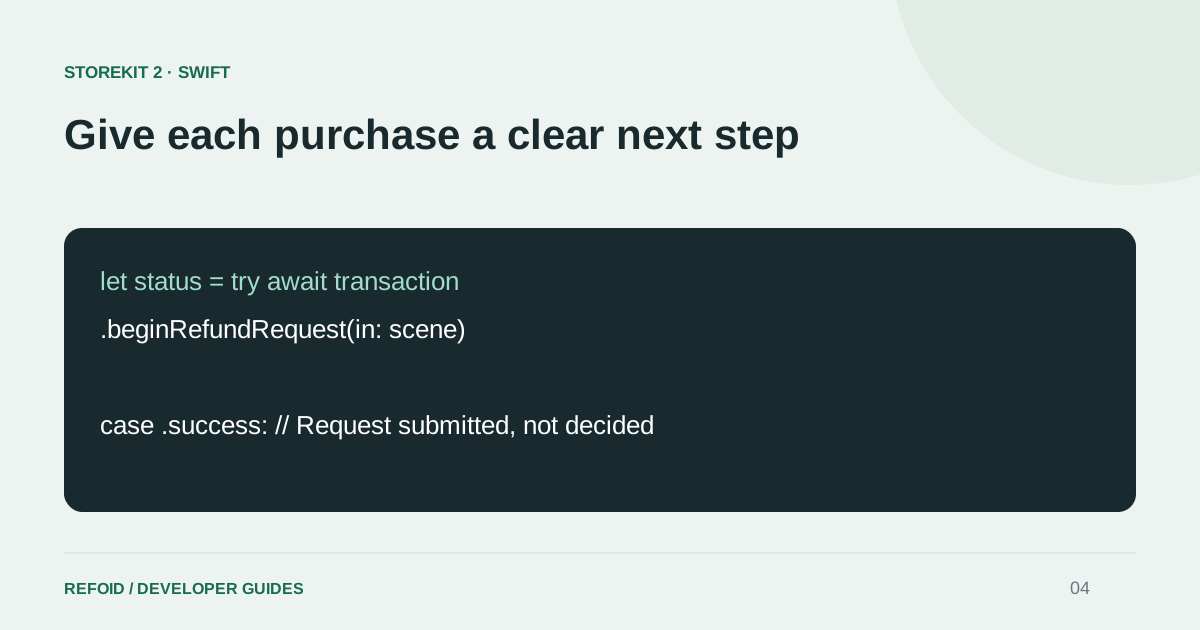
Use the standard Apple sheet for the request itself. Keep your own confirmation text about submission, because StoreKit’s success status means the request was received, not that money has been refunded.
import StoreKit
import UIKit

@available(iOS 15.0, *)
@MainActor
func requestRefund(
    for transaction: Transaction,
    in scene: UIWindowScene
) async -> String
{
    do
    {
        let status = try await transaction.beginRefundRequest(in: scene)

        switch status
        {
        case .success:
            return "Refund request submitted to Apple"
        case .userCancelled:
            return "Refund request cancelled"
        @unknown default:
            return "Check your purchase status for updates"
        }
    }
    catch
    {
        return "Unable to submit the request. Please try again."
    }
}
Keep the app and server responsibilities clear
The sheet handles the customer interaction. Your server-side integration handles notifications and any eligible response. Refoid does not need an SDK inside the app to receive Apple’s server notifications; the Swift code here is an optional in-app entry point for customers and testers.
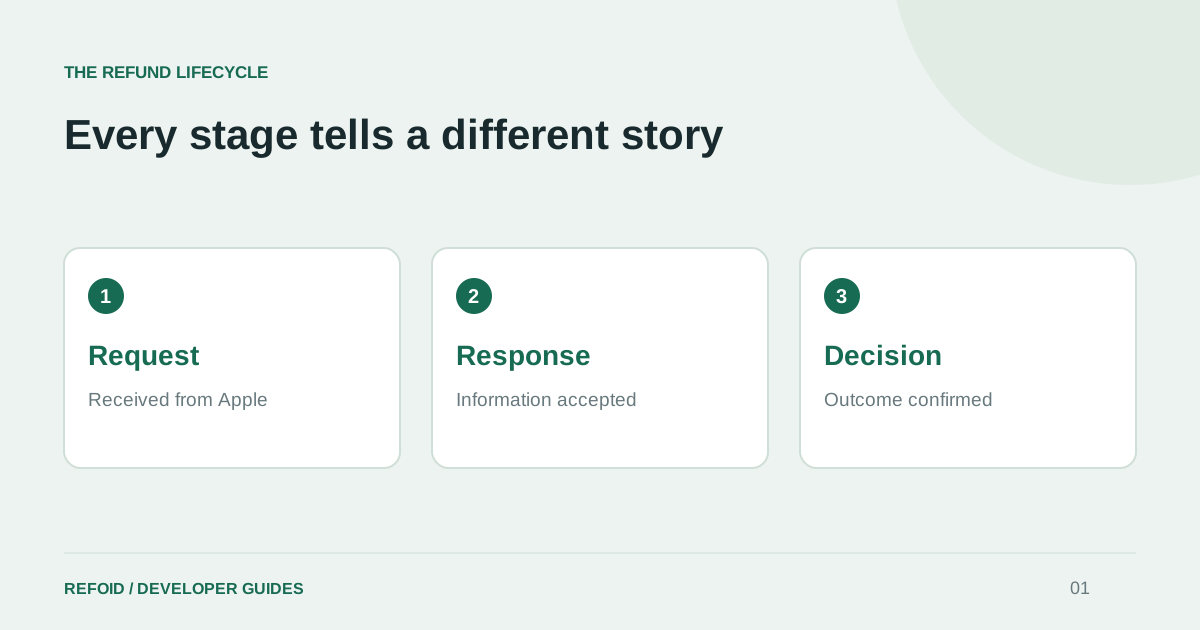
Do not remove access merely because the customer submitted a request. Update access from verified purchase and entitlement information. Conversely, do not promise permanent access just because a server response was accepted. The refund lifecycle explains these intermediate states.
Make the test observable
Before shipping, test cancellation of the sheet, successful submission and a failure path. Make sure VoiceOver can identify the purchase and the action. Avoid displaying raw server errors or private account information in a customer-facing alert.
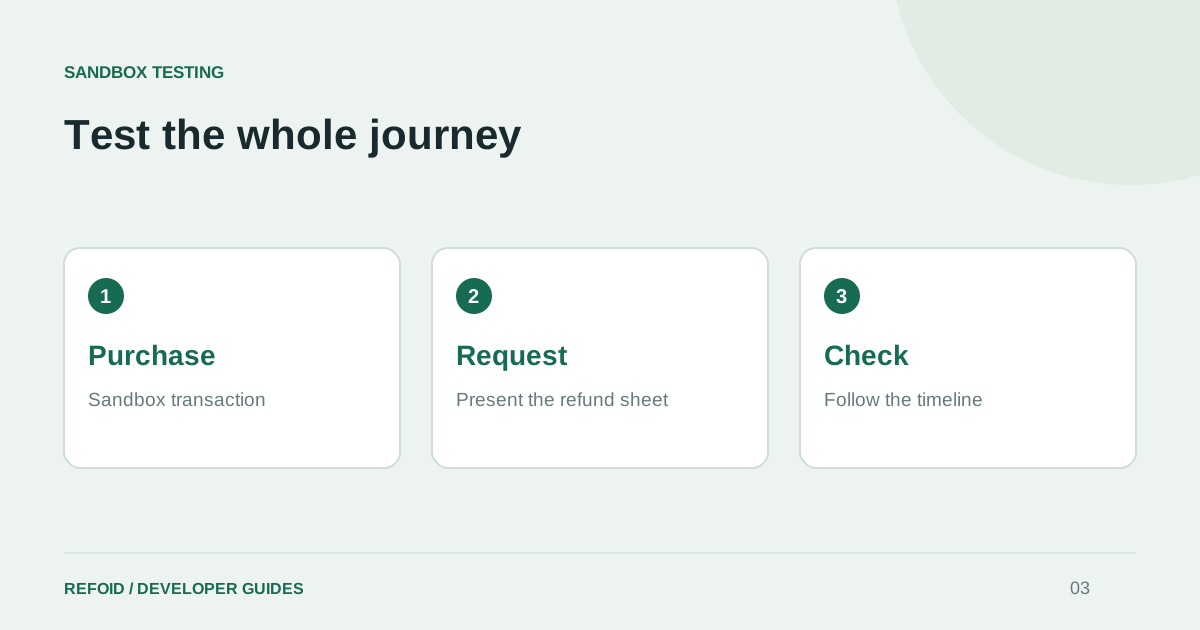
For an end-to-end check, follow the Sandbox testing guide. Track the selected transaction in Refoid rather than using a different purchase for each retry. You can explore the service first in the dashboard demo.
Keep the refund action available from a stable purchase-history screen, rather than hiding it behind a temporary success message after checkout. That makes the same flow accessible when the customer returns later.
Further reading from Apple
See your refund workflow clearly
Explore Refoid, connect your apps and follow each request from arrival to Apple’s decision
Explore the dashboard How Refoid works